Using JRNI
Appointments
Creating and managing bookings via Call Center
Personal Booking Links
Locating bookings and customers
Resolving conflicting shift patterns
Locations overview
Creating pre and post appointment questions
Changing the staff member or resource on an upcoming booking
Adding attendees to existing and upcoming bookings
Rescheduling and canceling bookings
Blocking out time on the calendar
Creating appointment bookings
Calendar overview
Parent and Child level overview
Using Check In for appointments
Staff
Editing and removing staff members
Configuring availability by method
Creating staff members
Creating and managing staff availability
Creating availability for multi-location staff
Services
Creating and editing Services
Service image requirments
Private services
Categories
Configuring the reservation workflow
Creating service schedules
Resources
Analytics
All Dashboards
Using the Capacity Dashboard
Using the Basic Dashboard
Using the Event Dashboard
Using the Conversion Dashboard
Using the HQ Dashboard
Using the Appointment Dashboard
Using the lead time dashboard
Insight Hub *New*
Creating dashboards
Creating Your First Dashboard - Format Tab Section Overview
Creating Your First Dashboard - Simple Steps
Creating Your First Dashboard - Interactive Elements Overview
Creating Your First Dashboard - Chart Components Overview
Creating Your First Dashboard - Data Tab Overview
Features
The new jrni Insight Hub
Analytics overview
Creating your own Reports
Google Analytics - New Customer Journeys
Setting up KPI targets and alerts
Drilling down into your data
Using Table Calculations
Filtering Dashboard and Report data
Creating and modifying a Dashboard
Sending, scheduling, and downloading Reports/Dashboards
Exploring the library of Dashboards and Reports
Booking journeys
Customer Journey's (Journey Builder)
Journey builder
Link Builder
Multi Service Journeys (Appointments)
How to use iframes
How to deeplink into booking journeys
Direct Links
Customer Journeys
Appointment automation
Queuing
Real-time Dashboard
Overview of the Concierge page
Setting up a virtual queue
Overview of JRNI Virtual Queuing
Setting up and managing a display board
Managing live queues via the Concierge page
How customers can join a live queue
Events
Events setup and config
Event journeys
Events Staff Experience
Events Bulk Import
*New* Event landing page builder
Branding
Business info
How to translate your content
Account Settings & Administration
Understanding user roles and permissions
How to reset or update your JRNI password
Creating and managing user access
Connectors & API
Calendar
Video
CRM
Salesforce
Guide to Salesforce Integration with JRNI
Add BookingBug updates to Chatter
Set up a booking journey in Salesforce
Manage user permissions and profiles
Use Studio inside Salesforce
Standard and Custom object mapping
Link JRNI staff to Salesforce users
Map customers, appointments and events
Set up the data sync
Integrating with Yext for JRNI Appointments
Release notes
Upcoming Release- 24th of September 2026
Release notes - 15th of July 2026
Release notes - 1st of July 2026
Release notes - 10th of June 2026
Release notes - April 2026
Release Notes - March 2026
(December - January 2026)
V8.21-V.8.21.2 (November 2025)
V.8.19-V.8.21 (October 2025)
V.8.17-V.8.18 (September 2025)
V8.15-V.8.16 (August 2025)
V.8.12 - V8.14 (July 2025)
V.8.11 (June 2025)
V8.10.1-V.8. (May 2025)
V8.10 - V8.11 (March 2025)
V8.8 - V.8.9 (February 2025)
V8.6 - V8.7 (January 2025)
V8.30 -V8.40 (November 2024)
V8.50 (December 2024)
V8.20 (October 2024)
V8.00-V8.10 (September 2024)
V7.55-V7.57 (August 2024)
V7.54 - V7.55 (July 2024)
V7.52-V7.53 (June 2024)
V7.49-V.51(May 2024)
V.7.47-V.7.48 (April 2024)
V.7.46 - V7.47 (March 2024)
V.7.45 (February 2024)
V7.42 - V.7.44 (January 2024)
V7.41.0 (Dec 14 2023)
V7.40.0 (December 11 2023)
V7.39.0 (December 1 2023)
V7.38.0 (November 20 2023)
V7.37.0 (Nov 7 2023)
V7.36.0 (Oct 30 2023)
V7.35.0 (Oct 18 2023)
V7.34.0 (Oct 13 2023)
V7.33.0 (Sep 28 2023)
V7.32.0 (Sep 28 2023)
V7.31.0 (Sep 20 2023)
V7.30.0 (Sep 20 2023)
V7.29.0 (Sep 7 2023)
V7.28.0 (Aug 29 2023)
V7.27.0 (Aug 29 2023)
V7.26.0 (Aug 20 2023)
V7.25.0 (Aug 9 2023)
V7.24.0 (Aug 9 2023)
V7.23.0 (July 31 2023)
V7.22.0 (July 24 2023)
V7.21.0 (July 18 2023)
V7.20.0 (July 5 2023)
V7.19.0 (June 29 2023)
V7.18.0 (June 26 2023)
V7.17.0 (June 14 2023)
V7.1.0 (March 6 2023)
V7.2.0 (March 8 2023)
V7.0.0 (February 9 2023)
V7.16.0 (June 8 2023)
V7.15.0 (June 1 2023)
V7.14.0 (June 7 2022)
V7.11.0 (April 24 2023)
V7.10.0 (April 20 2023)
V7.9.0 (April 12 2023)
V7.8.0 (April 5 2023)
V7.7.0 (March 30 2023)
V7.6.0 (March 29 2023)
V7.5.1 (March 20 2023)
V7.5.0 (March 16 2023)
V7.4.0 (March 11 2023)
V7.3.0 (March 9 2023)
- All Categories
- Using JRNI
- Booking journeys
- Link Builder
Link Builder
 Updated
by JRNI
Updated
by JRNI
What is the Link Builder
The Link Builder is a powerful tool within jrni Studio that allows staff to create custom booking links with pre-configured settings. Instead of customers navigating through multiple selection steps, these direct links take them straight to the booking page with services and staff already selected.
Get more from your personal booking links. The Link Builder feature supercharges staff booking links allowing staff to create tailored links for one or more services, each ready to share in the right context. When a service requires multiple staff members, they can all be added to a single link, and the availability shown to the customer will reflect only the times when all selected staff are available. No double bookings, no back-and-forth, just seamless scheduling.
Key capabilities:
- Multiple service links: Create separate links for each service a staff member offers, making it easy to share the right link for the right context
- Combined staff availability: Add multiple staff members to a single link and the system automatically calculates overlapping availability, ensuring customers only see times when everyone is free
- Custom branded links: Give each link a descriptive title for campaign tracking, marketing, or internal organisation
Accessing the Link Builder
- Navigate to the Staff Member
- Navigate to Your Business > Staff in the main menu and select a staff member.
- Open the Direct Links Tab
- In the staff member's profile, click on the Direct Links tab.
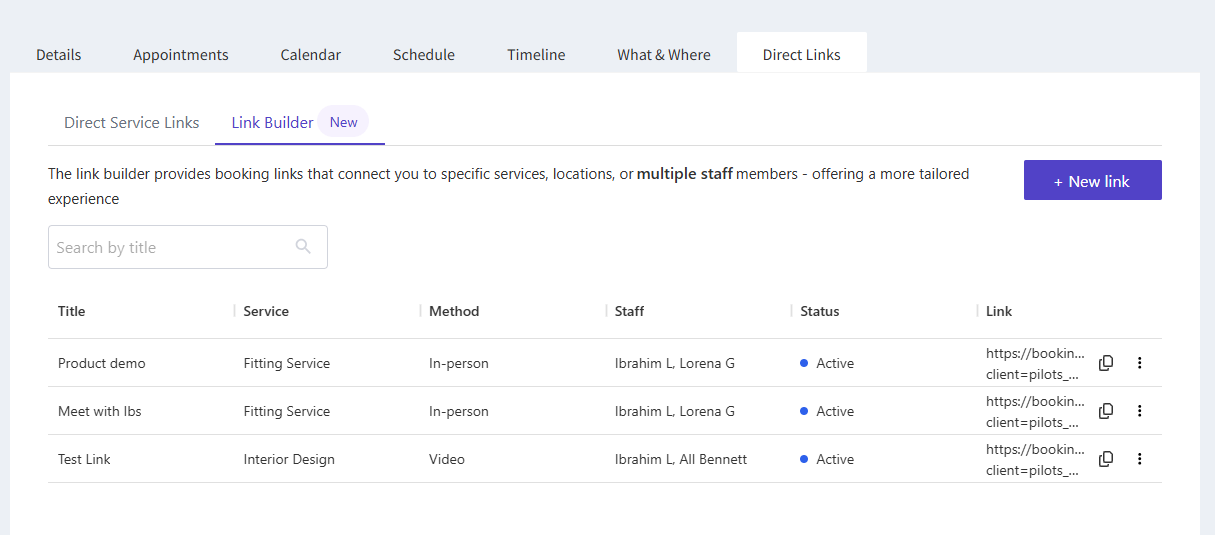
- Select the Link Builder tab to access the link builder.
- Click "New Link"
- Give your link a descriptive title (e.g. "Instagram Summer Campaign" or "VIP Client Consultation"). This title is for your reference only and won't be visible to customers.
- Choose which service this link should pre-select. Click the dropdown menu to see all services associated with the staff member. The list shows both the service name and appointment method.
- Add Additional Staff (Optional)If the service requires multiple staff members, you can add up to 3 additional staff:
- Type at least 3 characters in the search box
- Select a staff member from the search results
- Repeat to add more staff (up to 3 additional)
- Remove staff by clicking the × icon next to their name
- Generate the Link - Once you've filled in the required fields (Title and Service), click Generate Link. Your custom link will be created and added to the table.
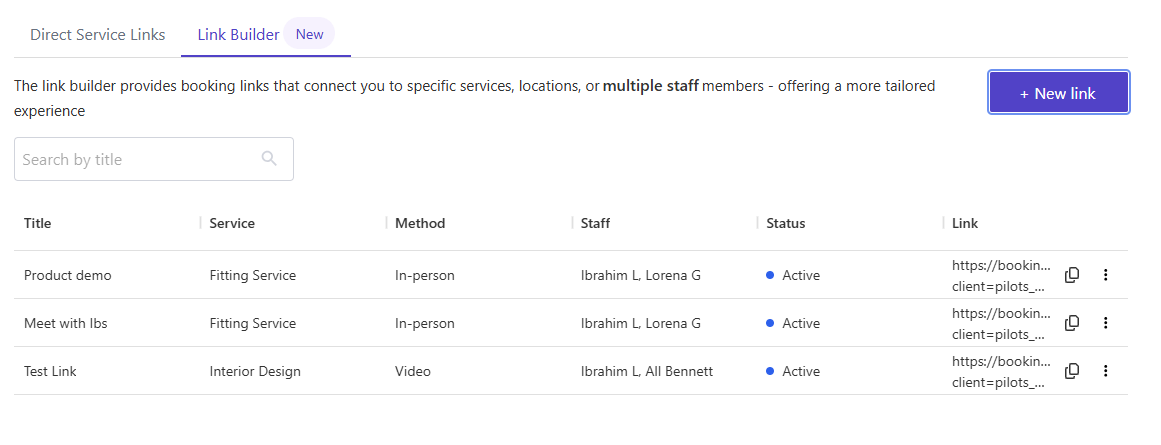
Editing a Link
- Open the Actions Menu: Click the three-dot menu (⋮) next to the link you want to edit
- Click "Edit": The Edit Custom Link dialog will open with the current settings pre-filled.
- Make Your Changes: Update the title, service, or staff members as needed.
- Click "Save": Your changes will be saved and the link URL will remain the same.
Searching and Filtering Links
Use the search bar at the top of the Link Builder table to quickly find links by title. This is especially useful if you have many custom links for different campaigns.
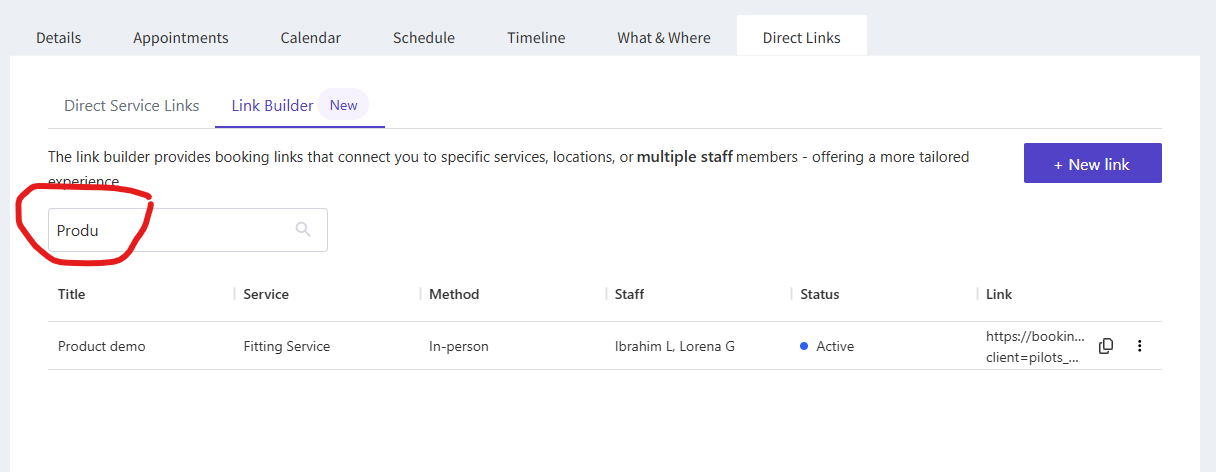
Common Questions
I don't see the Link Builder tab
The Link Builder is behind a feature flag so it is not enabled by default. If you would like to enable this feature please reach out to your Customer Success Manager/Tecnical Account Manager or the jrni support team.
I can't find a service in the dropdown
- Only services associated with the current staff member will appear. If a service is missing:
- Check that the staff member is assigned to that service
- Scroll down in the dropdown, more services load as you scroll
- Verify the service is active and not deleted
The search for additional staff isn't working
The staff search requires at least 3 characters before it begins searching. Make sure you've typed at least 3 letters of the staff member's name.
My custom link isn't working
Check the following:
- Is the link status "Active"? Disabled links won't allow bookings
- Is the service still active and available?
- Are the staff members still active and assigned to the service?
- Does the staff member have a valid schedule?
- Has the staff member's personal booking link changed?
Can I delete a custom link?
Currently, links can be disabled but not permanently deleted. Disabling a link prevents it from being used while keeping it in your list for future reference.